Spark Configuration
Last month, I started testing the NVIDIA DGX Spark, the self-described “Grace Blackwell AI supercomputer on your desk”.
As highlighted in my previous article, the NVIDIA DGX Spark is a very specific product, targeting those who are interested in AI development, using the NVIDIA AI hardware/software ecosystem.
I would not recommend it for anyone looking for general-purpose computing or a device for open source AI inference, where there are plenty of cheaper alternatives (like systems configured with the AMD-Ryzen-AI-Max-300).
This article will explain my initial configuration for the NVIDIA DGX Spark running as a headless server, providing a CUDA-enabled AI platform that can be accessed from any location.
The configuration includes the initial setup via SSH, alongside the installation of Tailscale for secure remote access and Sunshine for low-latency desktop remote access streaming.
The decisions to use Tailscale and Sunshine are very deliberate, as they are open source and free to use. They also offer high performance with a low support overhead, which is perfect for a home lab.
Initial Configuration
Start by powering on the NVIDIA DGX Spark by plugging it in and pressing the button on the back of the device.
Frustratingly, NVIDIA decided not to include any lights to signify power status; therefore, without a monitor attached, there is no easy way to see if the device is actually on. You can place your hand on the front of the device, where you should feel a small amount of air flow.
Assuming this is the first time using the NVIDIA DGX Spark, it will automatically create a local Wi-Fi hotspot, with the SSID and password printed on the included “Quick Start Guide”.
Connect to the local Wi-Fi hotspot via another system, which will allow you to open the system setup page via a browser using the link http://spark-a3aa.local.
The system setup page includes a step-by-step wizard, covering configuration items such as the hostname, username, password, network, etc.
Once configured, it will also complete a full system update and reboot. The NVIDIA DGX Spark can now be accessed over the local area network either via the browser (using the previously configured hostname) or using the NVIDIA Sync tool.
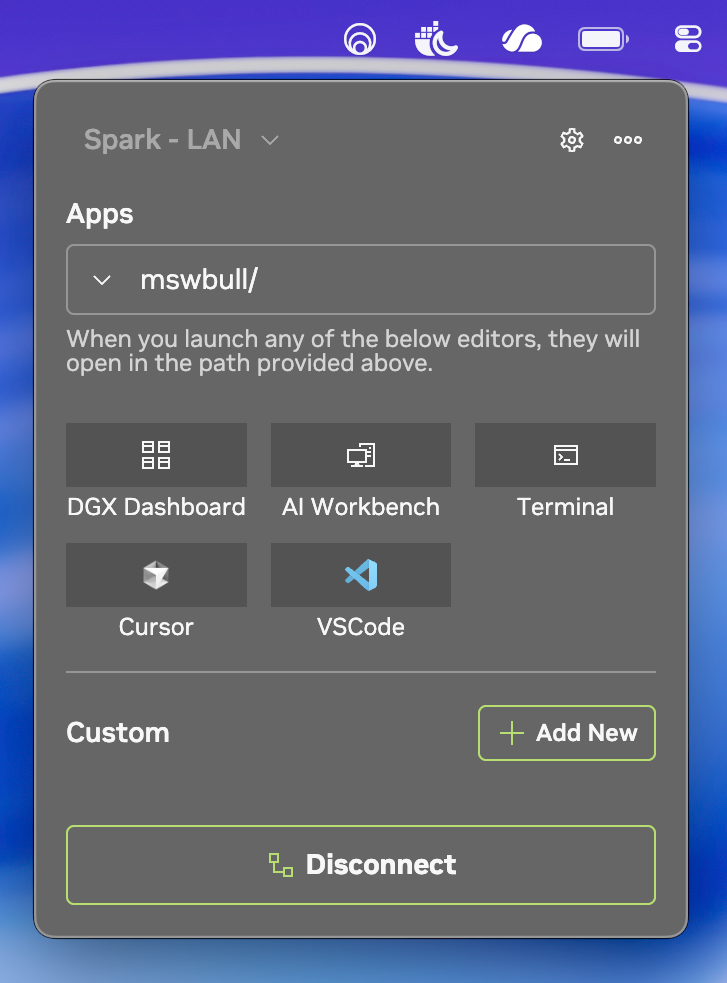
If running Windows or macOS, I would recommend installing and using the NVIDIA Sync tool, which provides a simple way to connect and launch common applications on the NVIDIA DGX Spark. For example, a Terminal connection via SSH or the NVIDIA AI Workbench.
The configuration for the NVIDIA Sync tool is very simple, requiring the hostname or IP address, username and password.
Remote Access (Tailscale)
Tailscale is a fast, secure mesh VPN service, using the open source WireGuard protocol. I use Tailscale to access other devices on my home network, such as my UGREEN NAS, etc.
Tailscale works great with all client operating systems (Windows, macOS and Linux), while being easy to install, configure and use. It is also free for personal use.
Using the NVIDIA Sync tool, open the Terminal, which will automatically connect to the NVIDIA DGX Spark via SSH.
Run the following commands to install Tailscale, which will be used to support secure remote access. The final command (‘sudo tailscale up’) will prompt you to connect to your Tailscale account, establishing the remote connection with the NVIDIA DGX Spark.
sudo apt update

sudo apt install -y curl gnupg

curl -fsSL https://pkgs.tailscale.com/stable/ubuntu/noble.noarmor.gpg | \
  sudo tee /usr/share/keyrings/tailscale-archive-keyring.gpg > /dev/null

curl -fsSL https://pkgs.tailscale.com/stable/ubuntu/noble.tailscale-keyring.list | \
    sudo tee /etc/apt/sources.list.d/tailscale.list

sudo apt update

sudo apt install -y tailscale

sudo tailscale up
With Tailscale installed and enabled, you can now access your NVIDIA DGX Spark using the Tailscale IP address, which can be viewed using the command ‘tailscale status’.
Remote Desktop Streaming (Sunshine)
Sunshine is a self-hosted game stream host for Moonlight. Delivering low-latency, cloud gaming server capabilities with support for NVIDIA hardware encoding.
Although you could access the NVIDIA DGX Spark via RDP or VNC, Sunshine and Moonlight offer higher performance, designed to run on ARM64 with an NVIDIA Blackwell (GB10) Graphics Processing Unit (GPU).
To install Sunshine, I recommend using the script maintained by eelbaz.
Using the NVIDIA Sync tool, open the Terminal, which will automatically connect to the NVIDIA DGX Spark via SSH. Run the following commands.
git clone https://github.com/eelbaz/dgx-spark-headless-sunshine.git
cd dgx-spark-headless-sunshine

sudo ./configure_headless_sunshine.sh

sudo reboot
Once complete, browse to “https://xyz.local:47990/”, which will display the Sunshine web interface. Within this interface, you can configure a username and password, as well as pair the NVIDIA DGX Spark using a shared PIN.
To pair the device, open the Moonlight client application and connect to NVIDIA DGX Spark via the hostname or IP address (local or Tailscale, depending on your location).
You will be prompted with a PIN, which you can add to the Sunshine web interface.
The NVIDIA DGX Spark is now accessible via Sunshine and Moonlight, providing full desktop remote access streaming.
With everything configured, you can now start experimenting with the NVIDIA DGX Spark using the documentation provided by NVIDIA.