LibreOffice
LibreOffice is an excellent productivity suite, available for Windows, macOS and Linux. Most notably, it is free and open-source (licensed under a dual LGPLv3 and MPL 2.0 model), meaning it can be used for personal and commercial purposes without any payment or subscription.
By default, LibreOffice uses the OpenDocument Format (ODF) as its file format, which is an international standard developed by the ISO and IEC. However, it also supports the Office Open XML file format, used by Microsoft Office.
As a Linux user, it is also the most popular and (arguably) most comprehensive productivity suite. It includes applications for word processing (Writer), spreadsheets (Calc), presentations (Impress), vector graphics (Draw), database management (Base), and formula editing (Math).
Recognising that Microsoft Office is not available on Linux as a native application, LibreOffice provides an excellent alternative and is often “bundled” with Linux distributions, such as Fedora, etc.
Unfortunately, in a world dominated by Microsoft Office, compatibility is an important requirement. As someone who also uses Microsoft Office across macOS and Windows (mostly for work), having a consistent user experience is desired.
Thankfully, it is possible to configure LibreOffice on Linux to work “like” Microsoft Office, whilst also achieving acceptable (not perfect) compatibility.
To achieve this outcome, I recommend the steps outlined below.
NOTE: The steps will be different for each Linux distribution. The steps below are for Fedora.
First, if LibreOffice came bundled with your Linux distribution, I would actually recommend uninstalling and reinstalling using the Flatpak version. This will ensure you have the latest features and receive regular/timely updates.
sudo dnf group remove libreoffice
sudo dnf remove libreoffice*

flatpak install flathub org.libreoffice.LibreOffice -y
With the Flatpak version installed, the next task is to ensure font compatibility, recognising that Microsoft Office includes a range of proprietary fonts.
sudo dnf install \   https://download1.rpmfusion.org/free/fedora/rpmfusion-free-release-$(rpm -E %fedora).noarch.rpm

sudo dnf install \   https://download1.rpmfusion.org/nonfree/fedora/rpmfusion-nonfree-release-$(rpm -E %fedora).noarch.rpm

sudo dnf install mscore-fonts-all -y

sudo dnf install curl cabextract xorg-x11-font-utils fontconfig

sudo rpm -i https://downloads.sourceforge.net/project/mscorefonts2/rpms/msttcore-fonts-installer-2.6-1.noarch.rpm
With the fonts installed, open “LibreOffice Writer” and select “User Interface” from the “View” menu. Now select “Tabbed” and “Apply to All”.
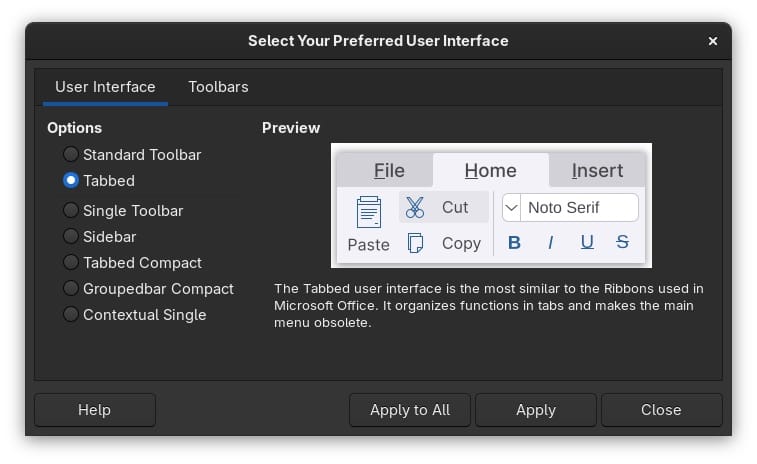
This will update the user interface for all LibreOffice applications to closely match the default Microsoft Office Ribbon interface.
Next, open “Options” and select “LibreOffice > Appearance”. Within these settings, select “Icons” and “Colibre (SVG)” or “Colibre (SVG+ dark)” depending on if you are running light or dark mode.
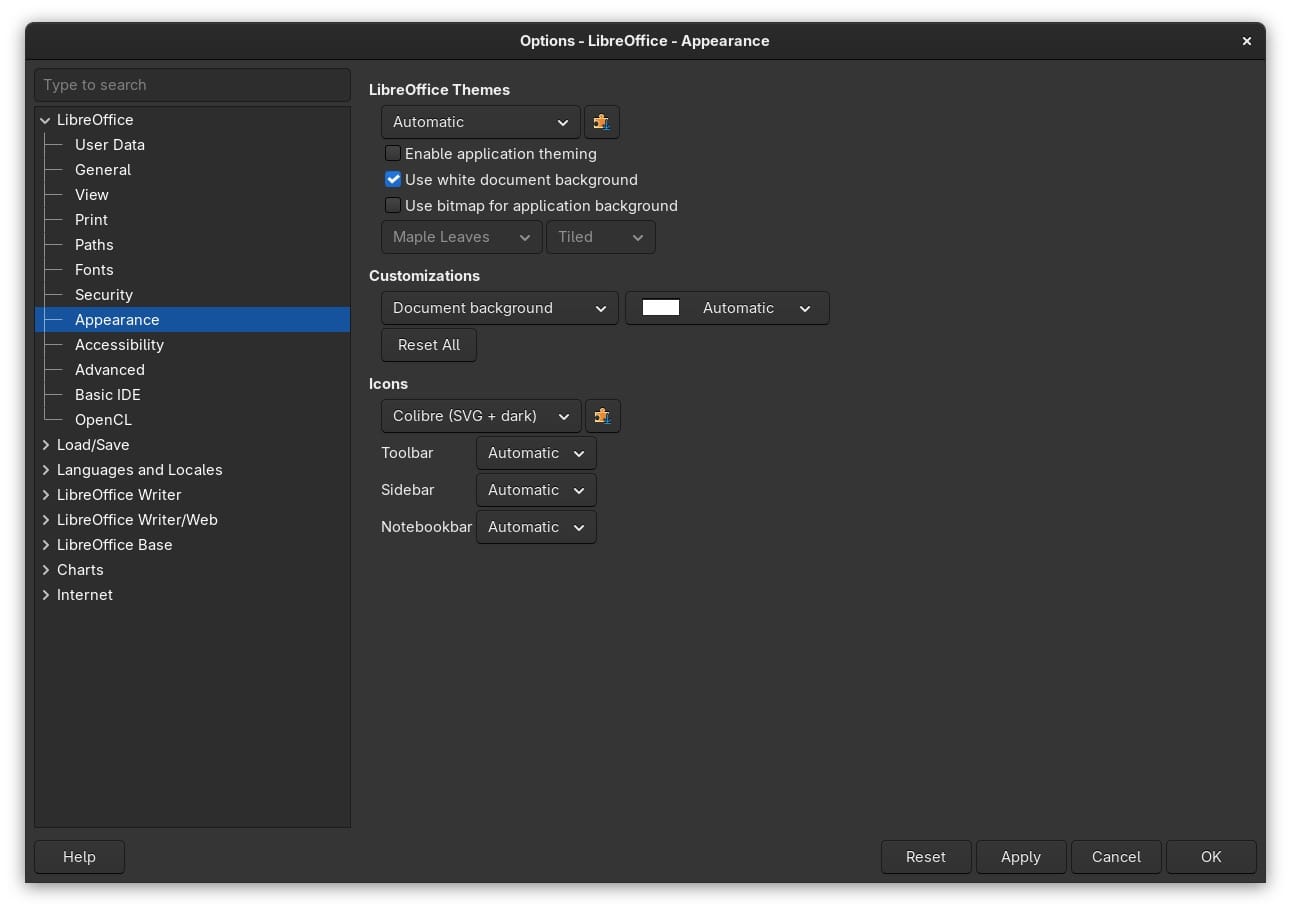
This will update the default icons across the applications to closely match the Microsoft Office defaults.
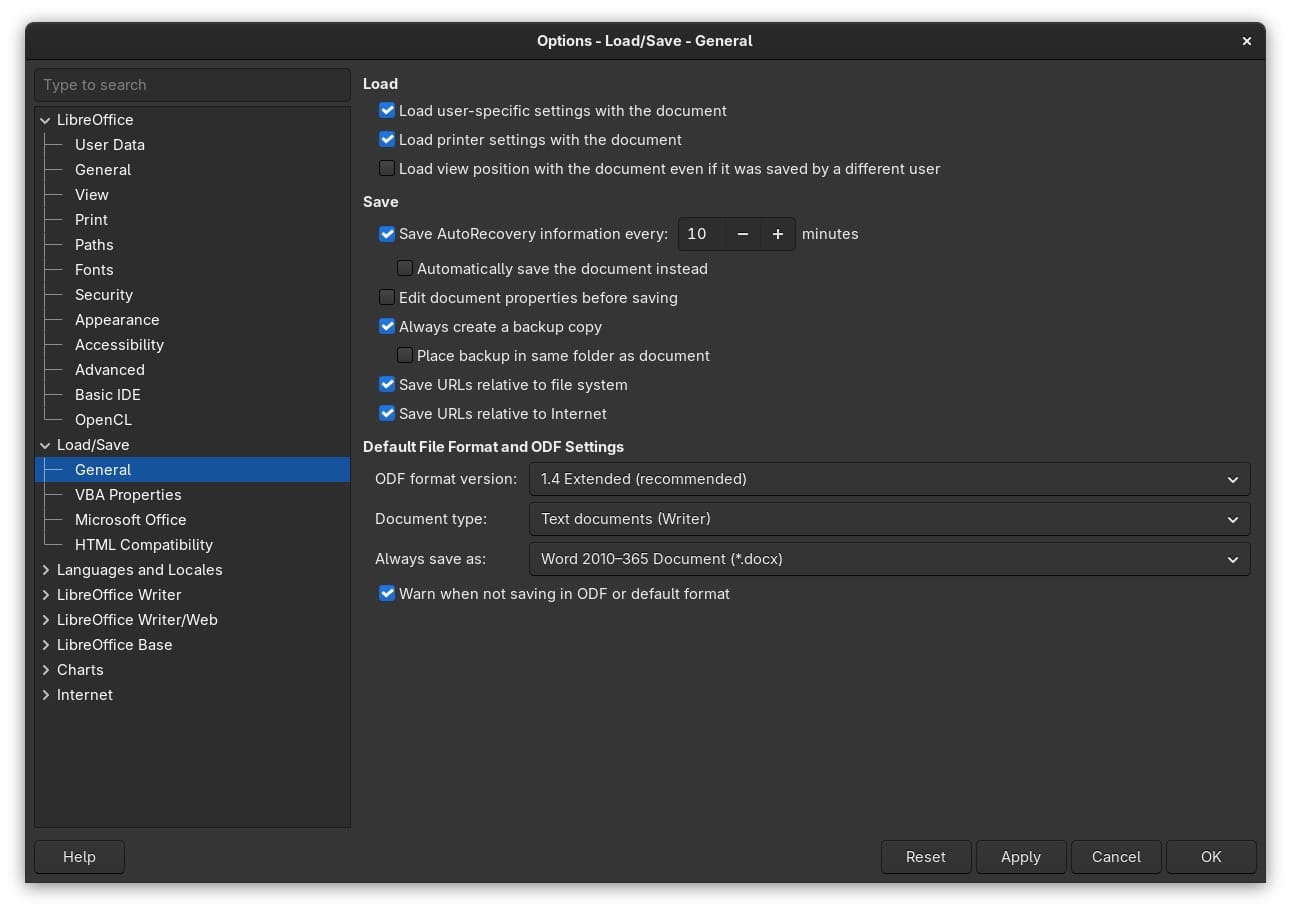
Switch to “Load/Save > General” and update the “Default File Format and ODF Settings” to “Always save as” the Microsoft Office Open XML file format. For example, “Word 2010-365 Document (*.docx)”. This setting must be configured per application, specifically Writer, Calc and Impress.
Finally, switch to “Load/Save > Microsoft Office” and ensure all features are selected; this will help with compatibility between LibreOffice and Microsoft Office.
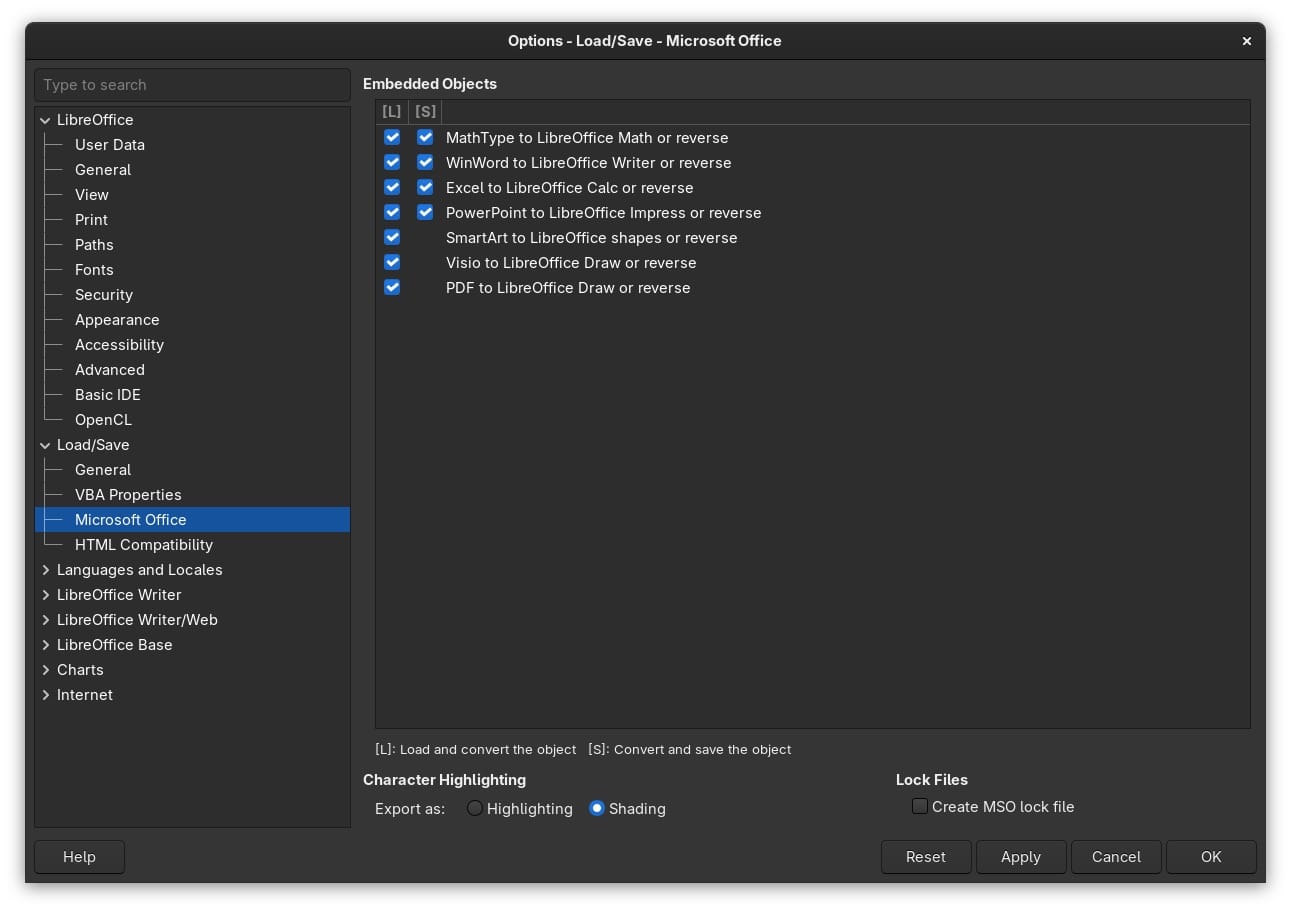
With these settings configured, LibreOffice should look, feel and operate similarly to Microsoft Office.
For more information about the benefits of LibreOffice, check out the article Pocket-lint.